If you intend to add columns to your list that are not available in the column mapping section, you will need to create Custom Fields. These will allow you to add the custom data from your list to your emails.
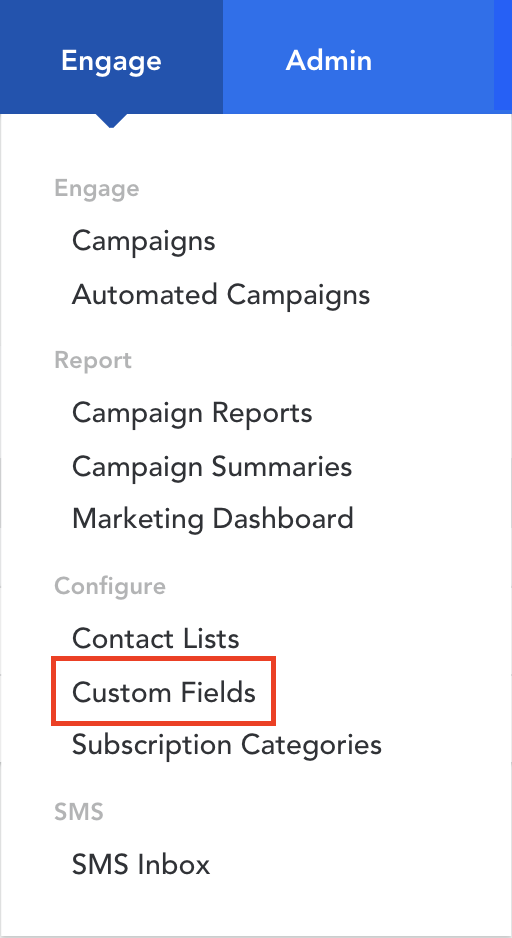
- Hover over ‘Engage’ in the top menu
- Click on ‘Custom Fields’ under the ‘Configure’ header
- Click on ‘Create’ in the top right corner
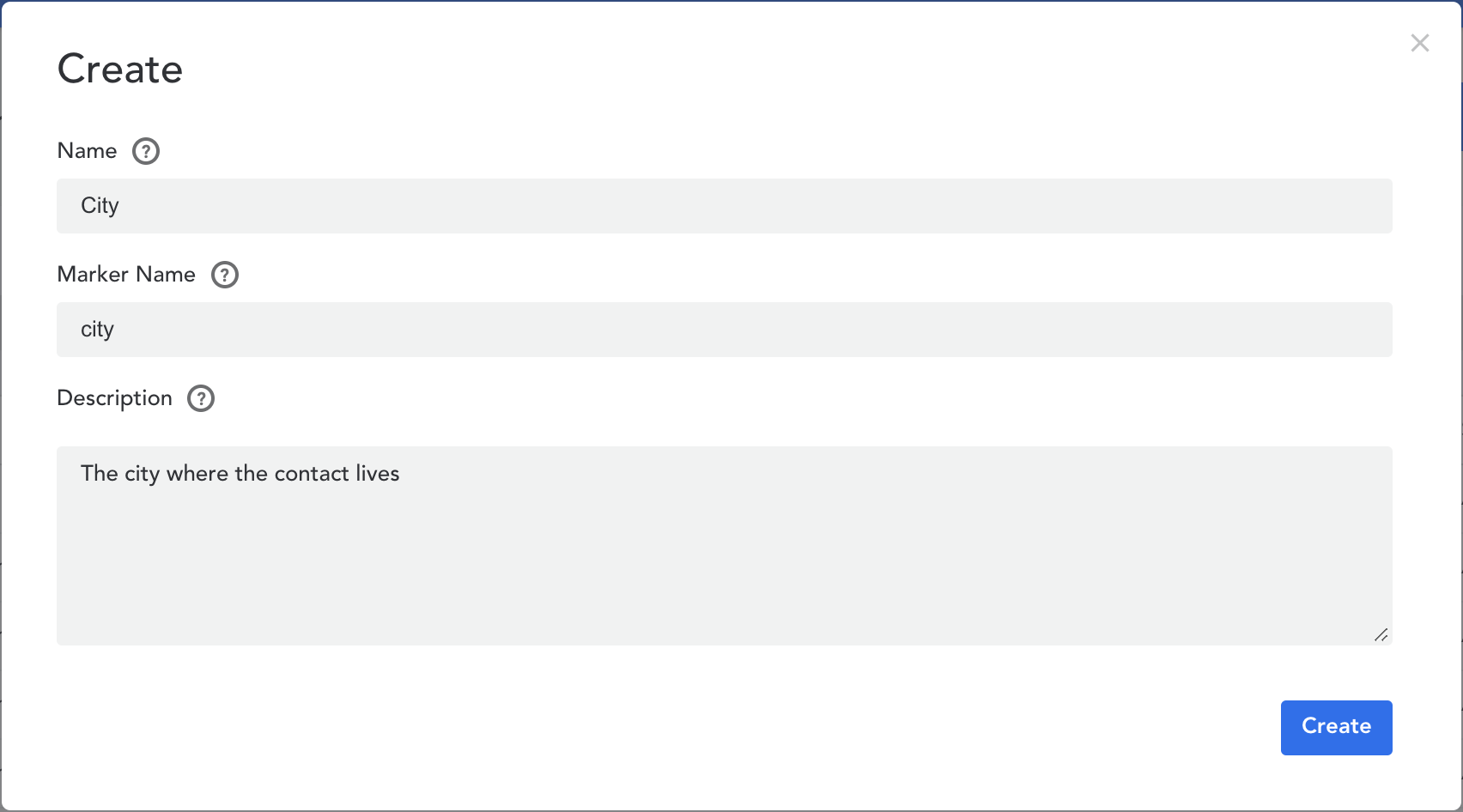
- In the new window, you will need to insert a ‘Name,’ a ‘Marker Name,’ and a ‘Description.’ The marker name is what you will embed into your emails to access the custom field
- Click ‘Create’
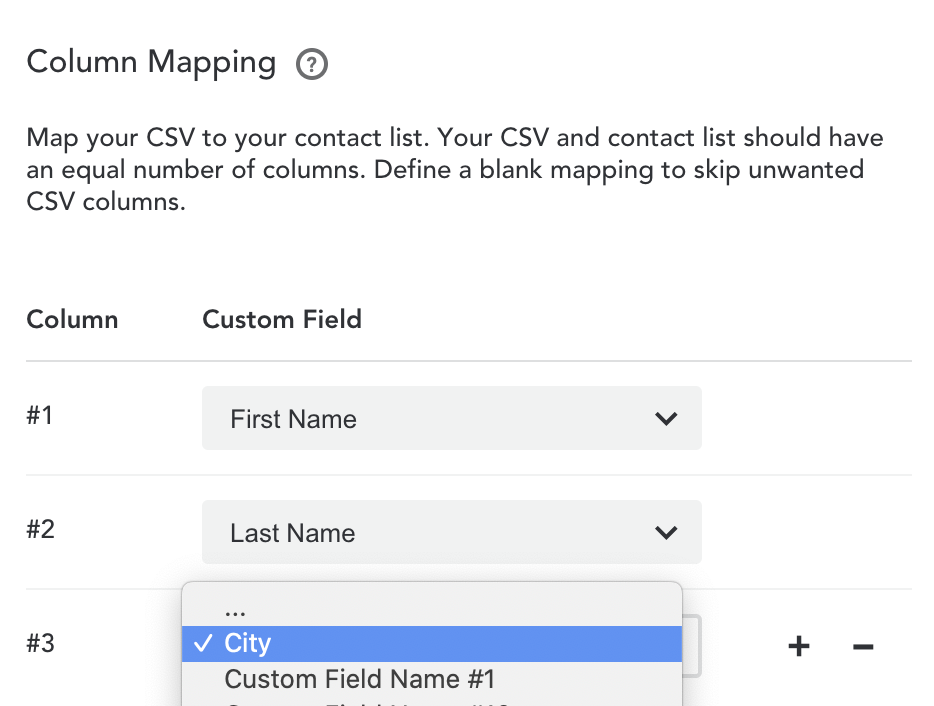
- Your new Custom Field will now be available in the ‘Column Mapping’ section
Comments
0 comments
Article is closed for comments.