The Contact List section allows you to upload additional or new contact lists. You can choose to upload contact lists manually or by using the Web API or SFTP.
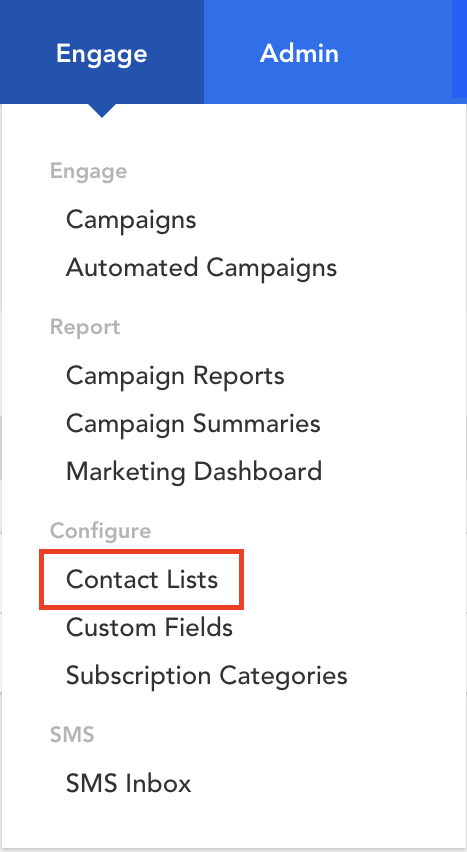
- Hover over 'Engage' in the top menu
- Click on 'Contact List' under the 'Configure' header
Select the 'Create' button
Enter the name of your list and click 'Create'
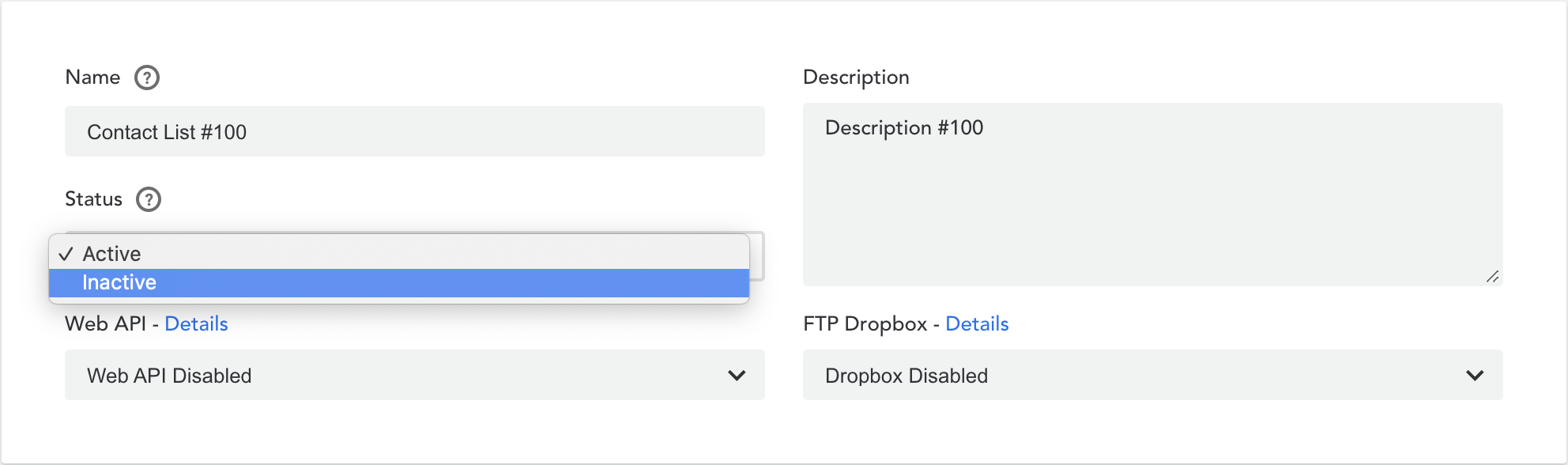
Enter a description for internal and future reference
-
If you change the status to 'Inactive', this list will be hidden across the console. You can find it again by filtering for inactive items from the contact list home screen
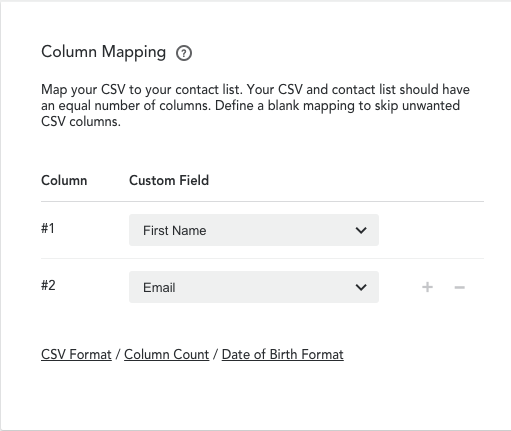
Column Mapping
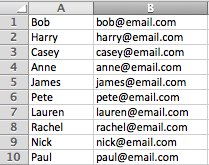
The columns on your CSV list that will be imported into Movio Cinema, must be mapped. For this, you will need to match the columns in your CSV file in the 'Column Mapping' section. The order of the columns is important and must be identical with the order of the columns in your CSV file.
To ensure successful matching, specify the following attributes of your CSV file:
- CSV Format: Select how fields in your CSV file are separated and quoted and from which line you want to start importing data
- Column Count: Enter the number of columns in your CSV file you wish to upload. Click ‘Continue’ and the entered number of columns appear
- Date of Birth Format: If your CSV file includes birth dates, select which format is used in your file
In the example below, we used ‘first name’ and ‘email address’
Upload Contact Lists manually
- Click on ‘Upload List Contacts’
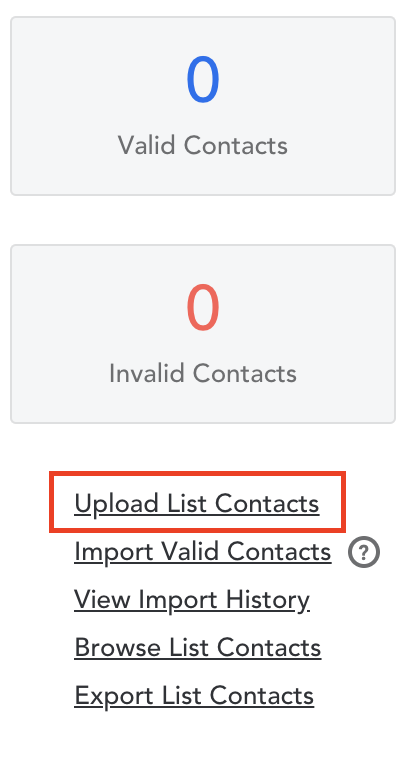
Click on 'Choose File' to select the list you want to upload
-
Your uploaded list can append, replace, or remove contacts in your database
- Append: New contacts will be appended to the list. Existing contacts will get updated
- Replace: All existing contacts will be removed and replaced *
- Remove: Existing contacts will be removed if they are in the uploaded file. The uploaded CSV file must contain contact email addresses in the first column
* Note, the existing contact list will be permanently lost after the successful upload of the new replacement list.
After your list is imported, a contact can be marked as invalid. The email contacts will be compared against an 'invalid email' list in Movio Cinema. If they match, they will be considered as ‘Invalid Contacts’. We also check for syntax errors. Find more details on invalid contacts here.
Web API / SFTP Dropbox
You can also upload contacts to a contact list via the Web API or SFTP Dropbox option.
To do this:
- Select 'Enable' from the dropdown list highlighted below:
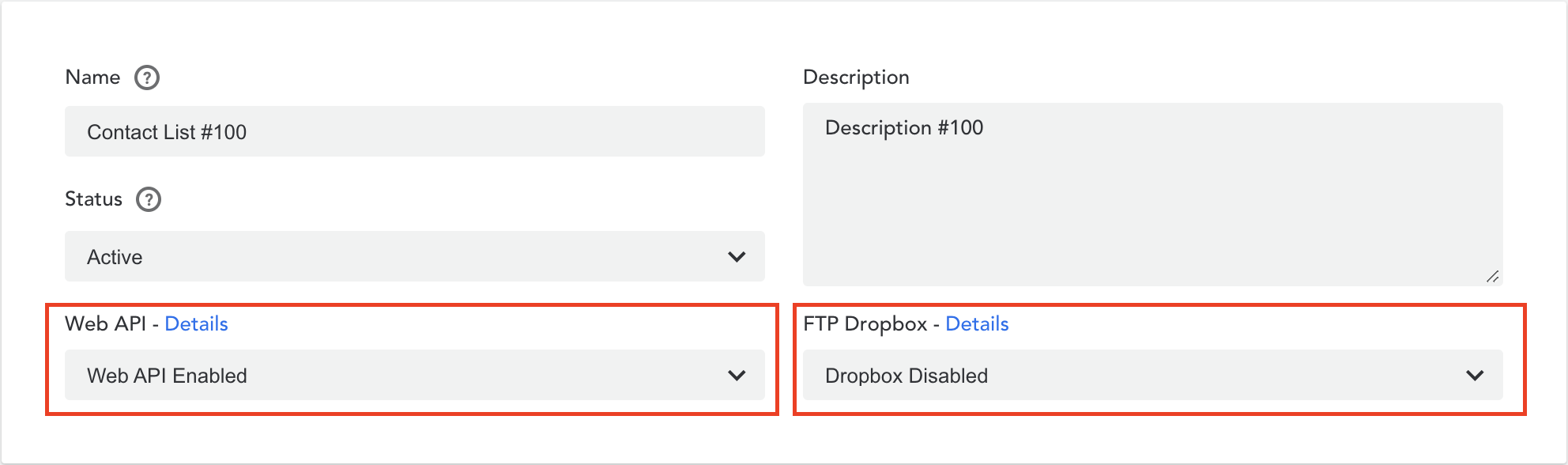
- Click on 'Details' for instructions on how to connect to either the Web API or SFTP Dropbox. More details regarding the SFTP are available here.
When uploading contact lists via the API, ensure to use the correct variable names for the following default fields (case sensitive):
First Name = firstName
Last Name = lastName
email = email
Date of Birth = dateOfBirth
Gender = gender
Mobile Number = mobileNumber
If you have any questions regarding Contact Lists, please contact Movio Support.
Comments
0 comments
Article is closed for comments.