Overview
Dynamic Content in Email allows cinema marketers to execute hyper-personalized email campaigns, effortlessly.
Dynamic Content leverages Movio’s Propensity Algorithm™ to effortlessly determine the best movie-related content for each moviegoer based on their individual and collective moviegoing history. This is the same Propensity Algorithm that is used in Audience Insights and Movie Insights. It allows marketers to enrich their campaigns with content that is more relevant and personalized for each moviegoer.
The goal for Dynamic Content in Email is to reduce the manual work required to send targeted campaigns, improve personalization, and thus increase key financial and engagement metrics for each campaign.
Key Benefits
- Maximized engagement – recommend your moviegoers’ ideal movie that they can watch at their most frequented cinema (via Vista’s MX Showtimes Integration)
- Action Movio’s insights – leverage Movio’s machine learning Propensity Algorithm to recommend the best movies for each individual moviegoer
- Drive true 1:1 personalization – combine Dynamic Content, Conditional Content and email markers to tailor every email to each moviegoer
- Scalable communication – effortlessly send hundreds of dynamically personalized emails from a single campaign
- Save time and effort – Send dynamic email campaigns by using auto-populated images and content based on previously uploaded data
Use Cases
- Send newsletters with Dynamic Content and promote the most-likely-to-see Coming Soon titles in the subject line and content
- Send one newsletter campaign that includes the most relevant 1:1 movie recommendations tailored to the specific tastes of each moviegoer
- Drive incremental spend by matching movie recommendations to offers, promotions, and food and beverage items related to that movie
- Refine post-session campaigns with personalized recommendations for a moviegoers’ next visit to your cinema
- Optimize marketing time and effort by allowing marketers to focus on creating compelling content
Configure Dynamic Content in the email header
- If Dynamic Content is enabled for you, go to the ‘Email’ section within a new or existing campaign
- Click ‘Open Editor’ to edit the email. The subject line and preheader are part of the Email Editor
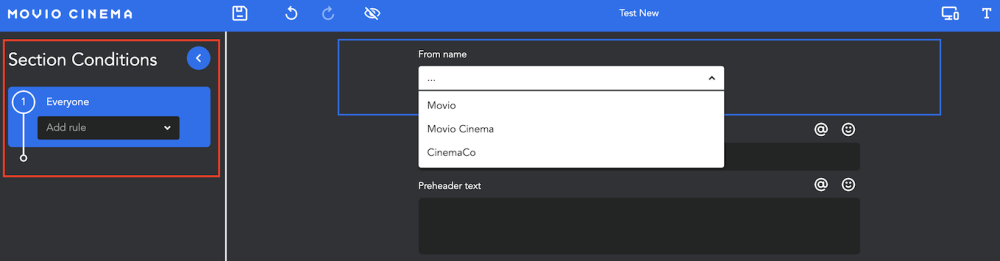
- Select ‘From name’. You can choose to use Conditional Content to include different sender names, e.g. for different subscription tiers, cinemas or clubs
- Select Dynamic Content for your ‘Subject line’ and ‘Preheader text’ by clicking the lightning bolt symbol next to it
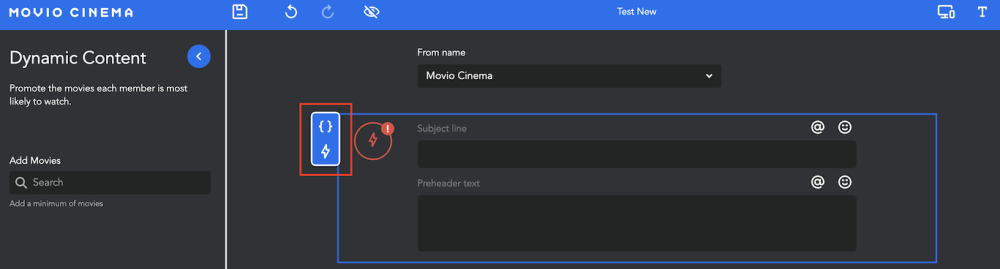
- Add the movies you want to include in your Dynamic Email under ‘Dynamic Content’ on the left-hand side
- For each added movie, enter an individual subject line and preheader, ideally a combination of the movie title and markers. Add markers by clicking the ‘@’ button and select the relevant field. Optional: Define a Fallback version and preferred letter casing
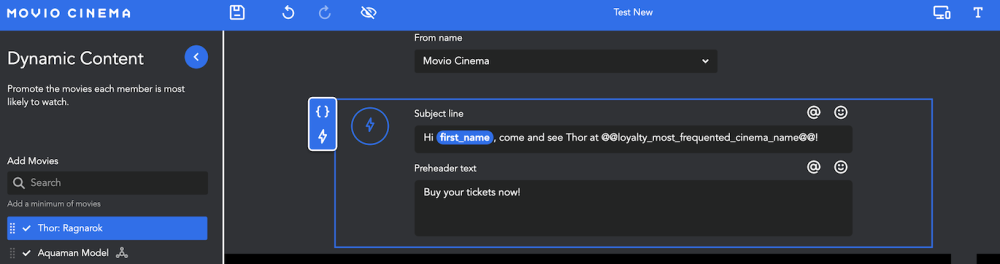
7. Repeat step 5 and 6 for all selected movies. Edit different subject lines and preheader by clicking
on the movie title on the left-hand side
8. Complete all Dynamic and Conditional versions and then click ‘Save’
Configure Dynamic Content in the email content
Dynamic Content in Email leverages Movio’s Propensity Algorithm to determine the best content to display in your email campaigns, based on a moviegoer’s likelihood to watch the movies selected.
- If Dynamic Content has been enabled for you, you will notice some of the sections in the email editor will have a lightning bolt in the top left corner – these are your Dynamic Content sections.
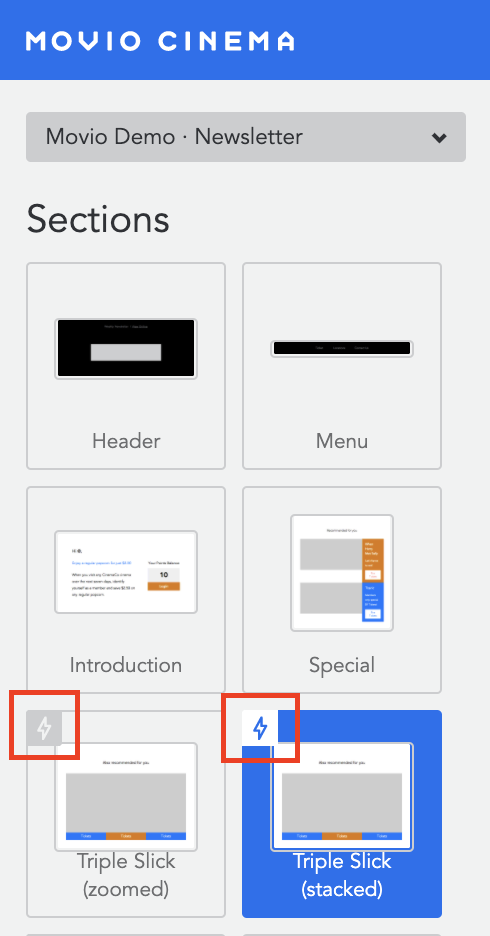
- Drag-and-drop one of these sections into the email editor.
- Hover over a section, and click on the lightning bolt. A dialogue box will appear on the left.
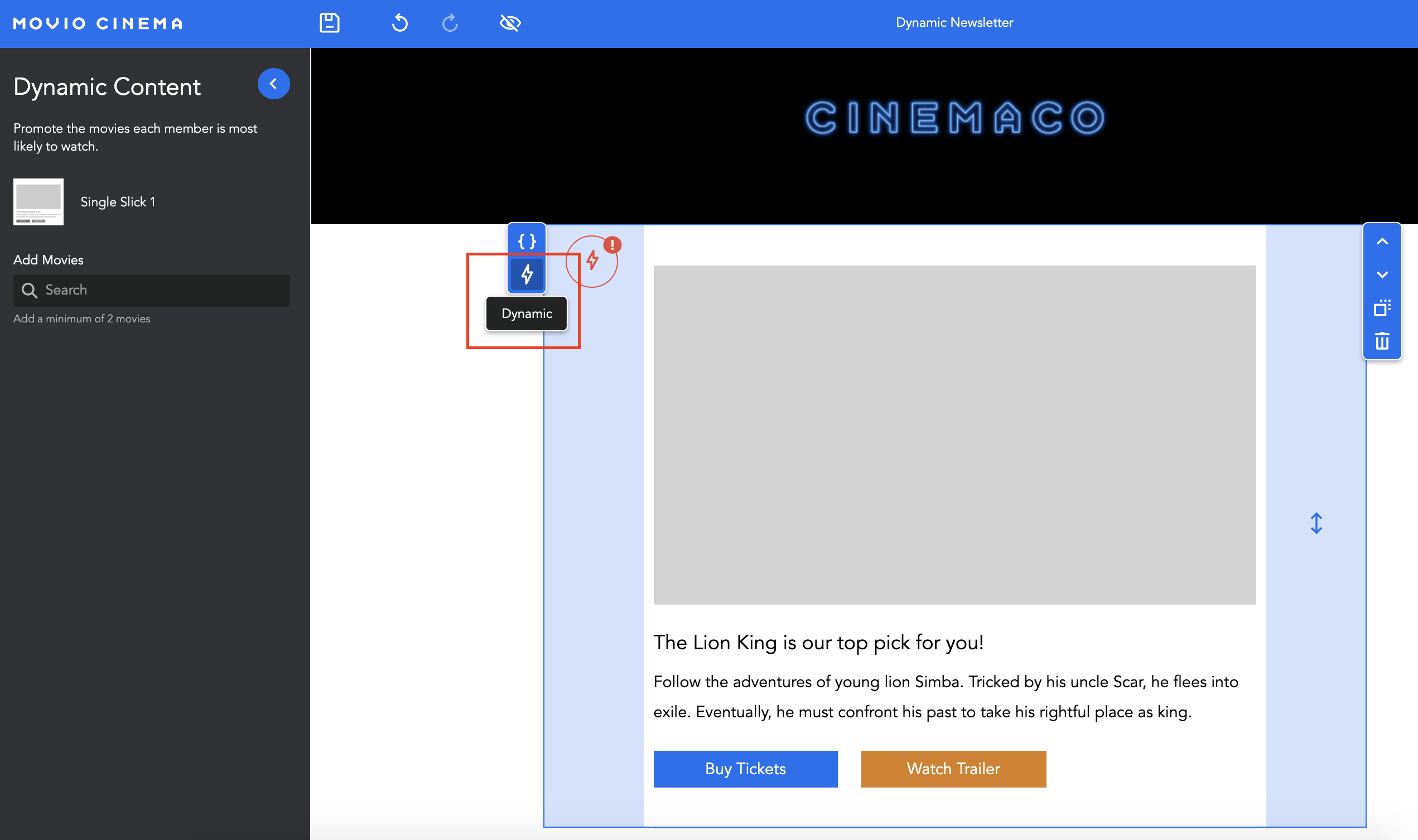
- Add the movies that you’d like to promote in your campaign. We recommend that you add all movies that are now showing or coming soon. If you want to display movies that are coming soon, you will need to first create a Model in Movie or Audience Insights.
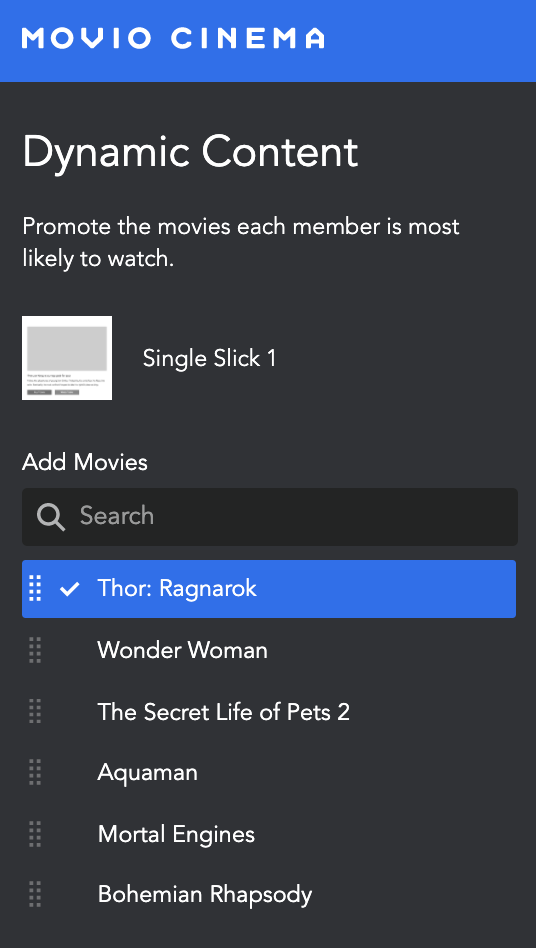
- Click on the first movie title.
- When you are adding a movie/model to a section for the first time, upload an image, text, links etc. to the section. A checkmark will appear next to the movie title once all mandatory fields are filled in. Once the email is saved, all areas of a section (image, text, links, button text) will be cached for this movie/model for future use.
- If a movie/model is added for which images and content have previously been uploaded, then images, text and links will attempt to match and auto-populate in the relevant fields. You can still edit the cached content or images. The modified version will then get saved as the new default for future use.
Note, uploaded images are cached based on a similar aspect ratio. If you are using a section with a different aspect ratio, the image might not be able to load.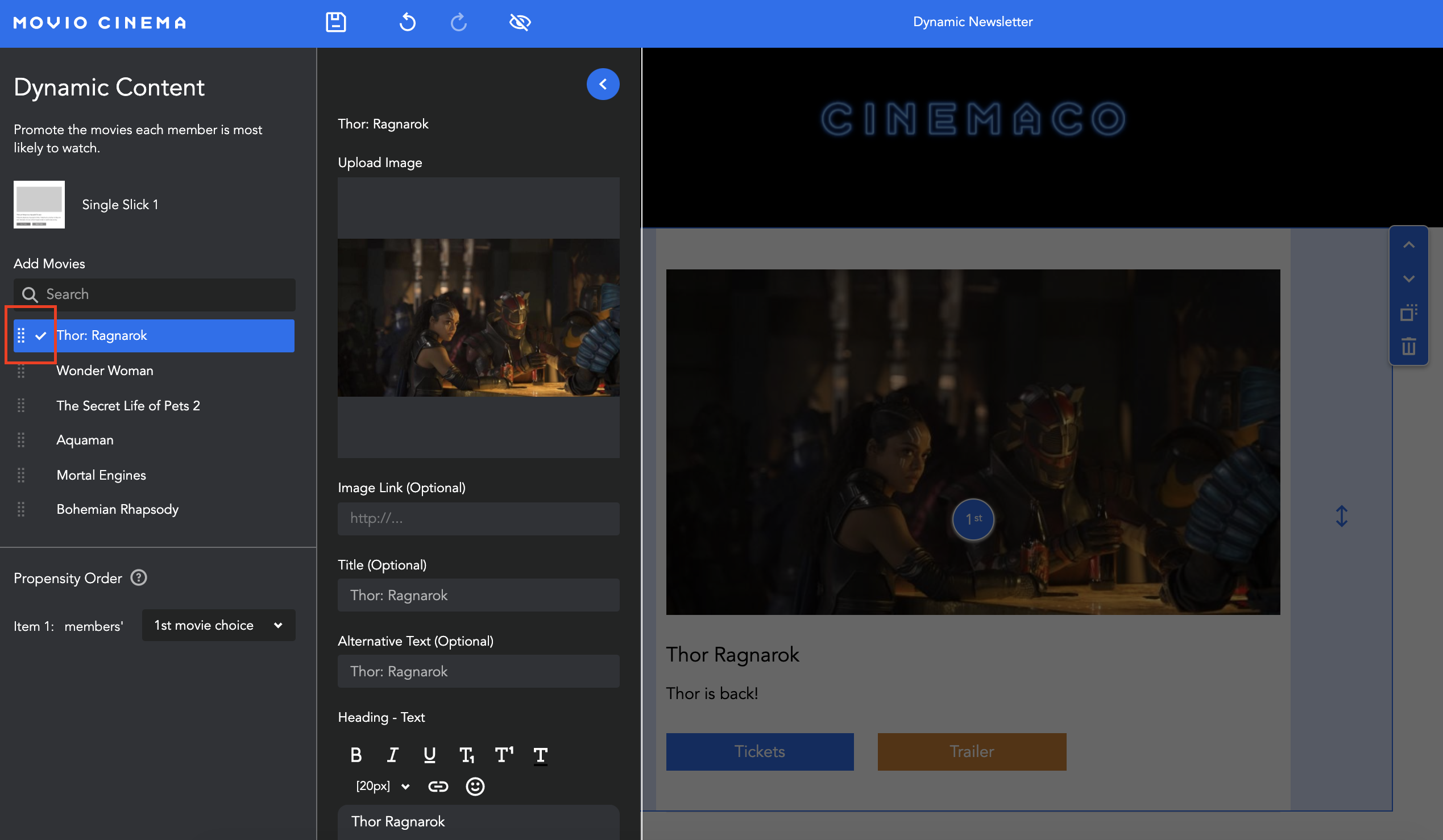
- Repeat step 5 for all other movies in your list that you are using for the first time.
- If you added other Dynamic Content sections, repeat steps 3-5.
- If you’ve selected a section that displays more than one movie choice (i.e. three slick), you will need to choose the ‘Propensity Order’ you’d like the movies to be displayed in. For example, show first choice in the banner image, then second choice in the middle, third choice on the left, fourth choice on the right.
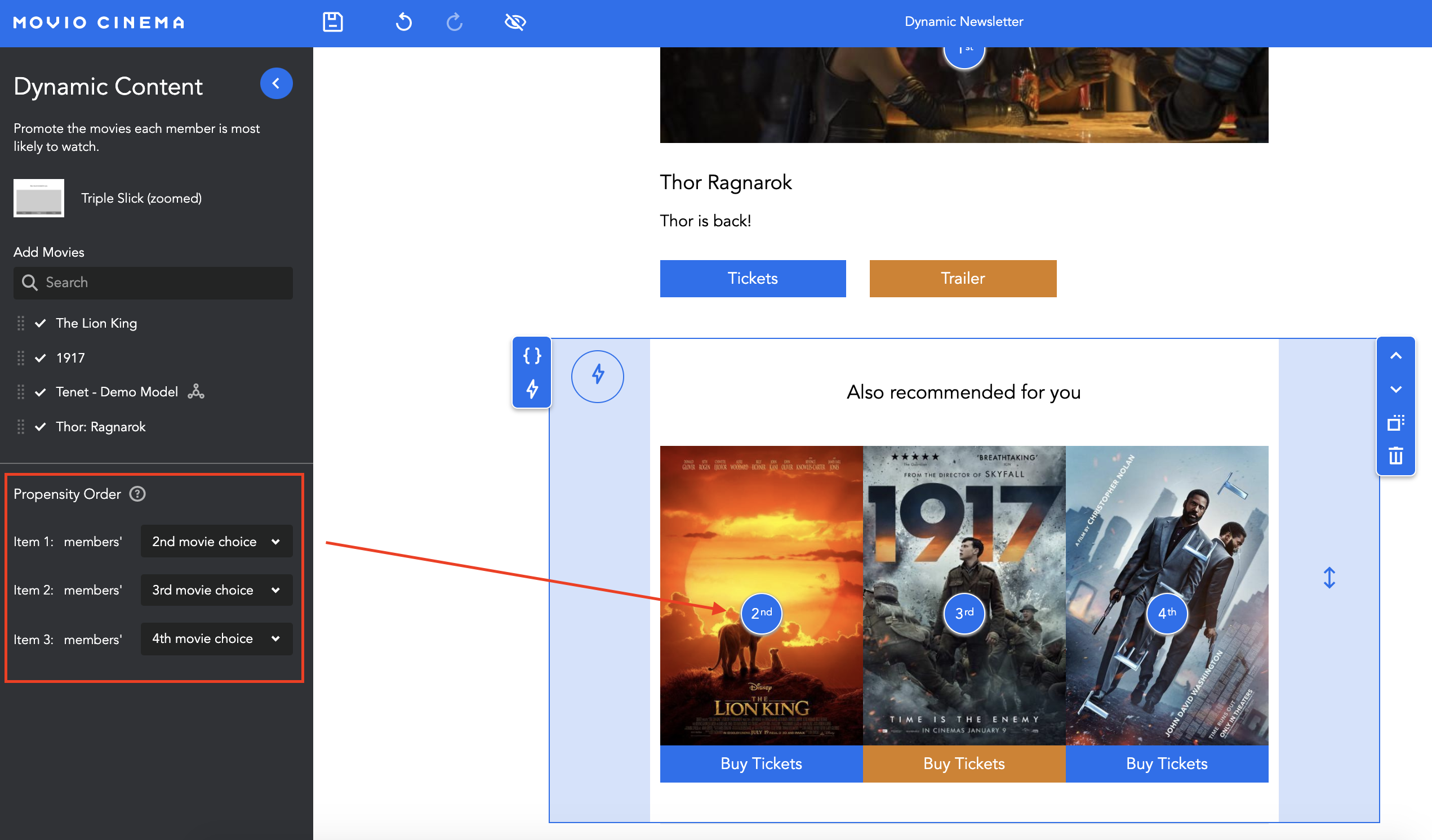
- You should have the same set of movies in the same order across multiple sections if you want the ‘Propensity Order’ to be consistent
- Click ‘Save’
Comments
0 comments
Article is closed for comments.