From any page in the console:
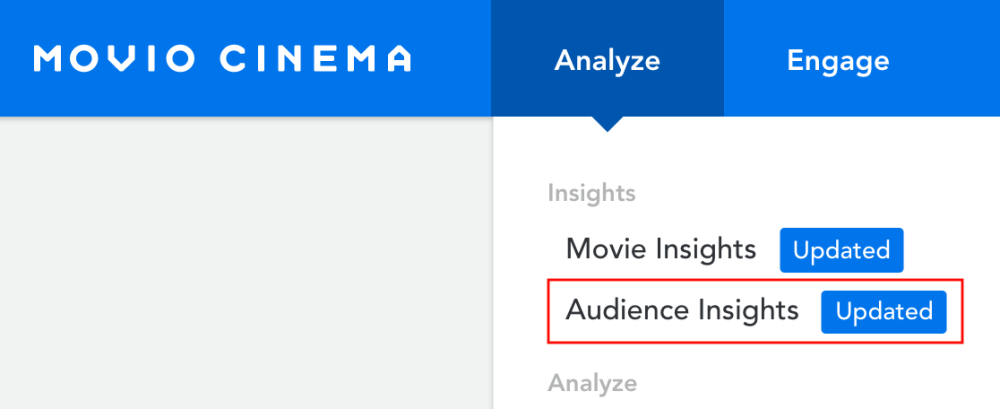
- To find the new Audience Insights module, hover over ‘Analyze’ and click on ‘Audience Insights’
-
To add movies to your propensity chart, you have two options:
-
The Search Field
Movies currently showing or upcoming movies with ticket sales: you can quickly add a movie to your chart if it is already screening.
- Start by typing the movie’s name in the search field
- Select the movie from the dropdown list.
The likelihood scores are automatically calculated for all your members and the audience share has been divided based on their propensity to see a particular movie.
-
Create a Model
For movies not currently showing or with no ticket sales: Movio Cinema has created the concept of ‘models’ for movies that do not have available data to calculate the likelihood of your members wanting to watch that particular movie. This allows you to build an audience by choosing the target movie and a list of comp titles that are similar.
For example, if your target movie is Fast & Furious Presents: Hobbs & Shaw and you have not yet sold any tickets, you will need to model an audience that looks like the Fast & Furious Presents: Hobbs & Shaw audience.
-
The Search Field
- Select which movies you’d like to include in your campaign. You can do this by either selecting them from the list, or by interacting with the chart
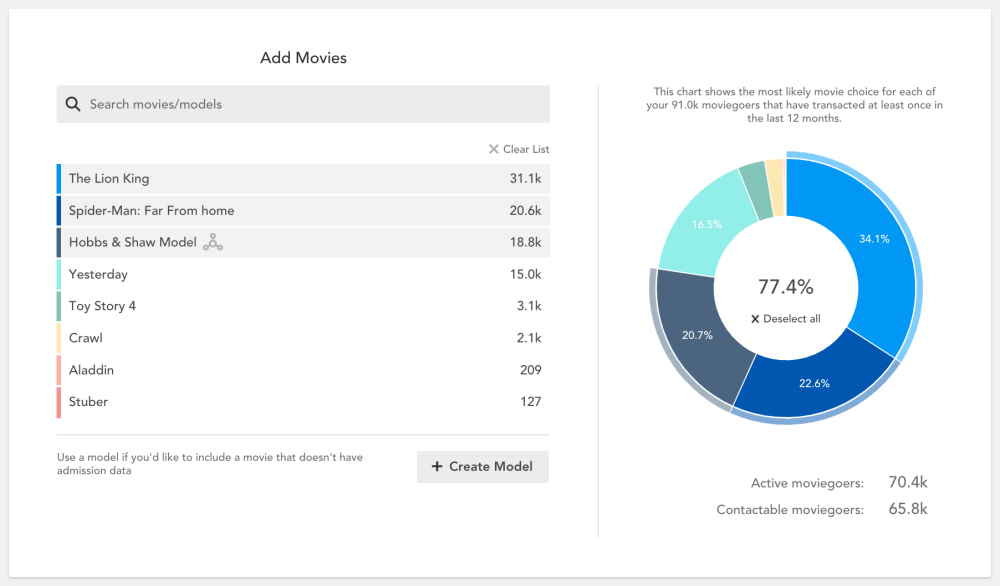
- Removing movies – it is important to remove movies from your chart if they are no longer showing in circuit. To do this, simply click on the ‘x’ button to the right of your listed movie. Your audience will be redistributed into their next most likely movie
- Further, segment your audience by clicking on one or more Moviegoer Value Segments from the lower half of the page. You can also use the Quick Link buttons to cluster certain segments together depending on your objective
You can deselect a Moviegoer Value Segment by clicking on it again or ‘Deselect all’.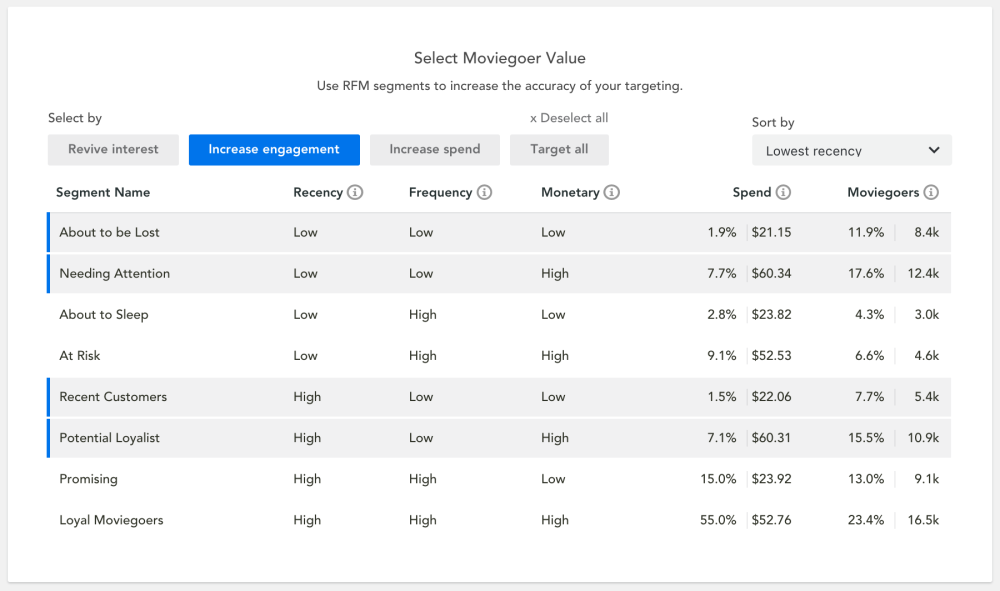
- At any point during your audience segmentation, you can view the subscription category breakdown from the ‘Summary to export’ section at the bottom the page by clicking on ‘View subscription categories’. This will assist you in planning how many Email or SMS campaigns can be sent once the audience is exported
- Export your audience to either Group Builder or Campaigns.
- When exporting to campaigns, you need to add a Snapshot name and Campaign name and configure if you need an A/B test or not. Check the ‘Stay in Audience Insights’ box if you’d like to create more campaigns rather than be redirected to the campaigns page. Your campaign will still be created on the campaigns page, but you will remain in Audience Insights
Note: When sending your campaign, for best results, use different messaging or incentives in your campaign for each segment.
When exporting your audience to Group Builder, you can create a new group by giving it a new name, or search for an existing Group Builder group that you want to add your audience to. Keep in mind that this will add the exported audience into that group’s current workspace. If you decide to be redirected to Group Builder, you can view the filter with your audience added and, if a mistake was made, you can now remove this filter and can export another audience by following the same above process. Check ‘Stay in Audience Insights’ if you’d like to create more audiences/groups rather than be redirected to Group Builder. Your Group will still be exported to Group Builder, but you will remain in Audience Insights.
Comments
0 comments
Article is closed for comments.