Providing Sample Data
- Provide Movio with a name and descriptions of your metric and some sample data, in a CSV format. For example:
memberId,NPS_score
56738,9
12640,6
34085,8Note: You can create multiple CMMs per member at once by adding extra columns:
memberId,NPS_score_current,NPS_score_previous
56738,9,7
12640,6,8
34085,8,9 - Movio will create this metric in your console, which will then allow you to upload your data.
Uploading Metric Data
- Your CMM data can be managed through the ‘Custom Member Metrics’ page within the ‘Analyze’ header.
- Data for CMM can either be uploaded with a file directly through Movio Cinema, or by using the FTP Dropbox.
- When uploading via Movio Cinema, you will be able to select a file from your desktop containing the metric information to be uploaded.
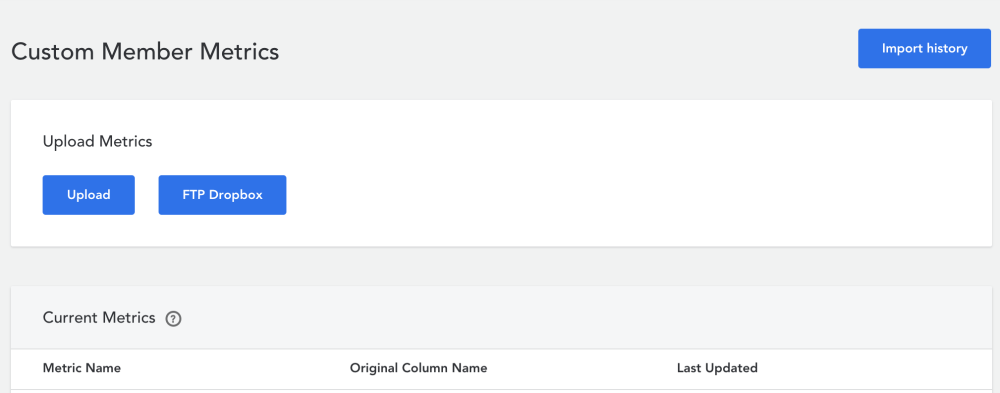
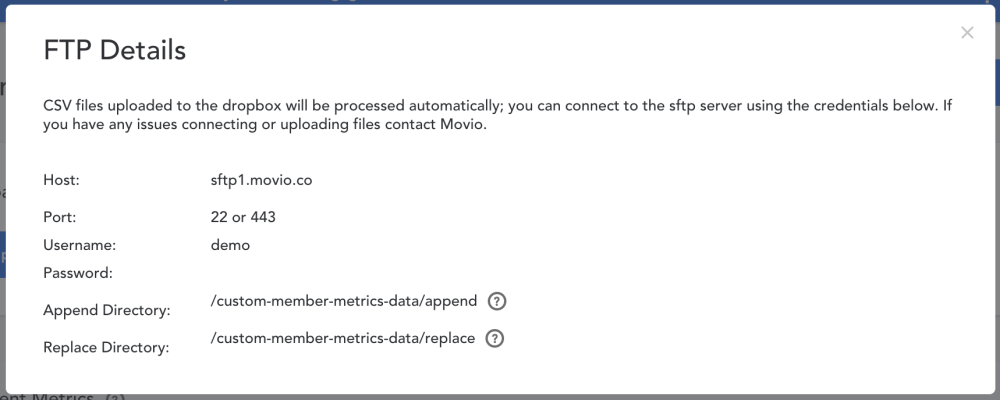
- It is best to use the ‘FTP Dropbox’ option for larger files. All details required to use it can be found by clicking the ‘FTP Dropbox’ button.
- We recommend using the Dropbox function when your file is larger than 10MB.
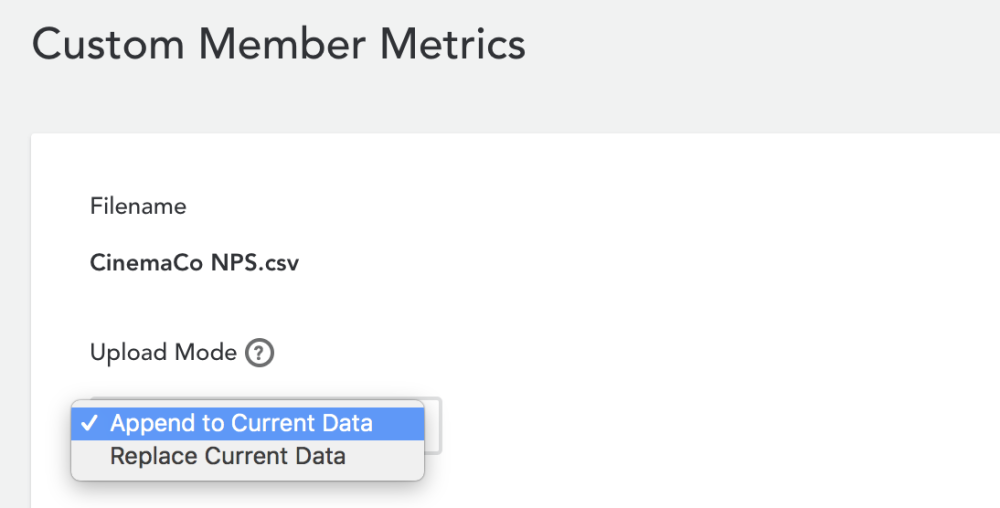
- Once a file has been selected, you can choose to either append this data to your current data or replace your existing data with that in the uploaded file.
- Note: When using replace, all the previously uploaded data for the CMM will be removed, before the new data is uploaded.
- Note: When using replace, all the previously uploaded data for the CMM will be removed, before the new data is uploaded.
- Once uploaded, you can view your previous uploads using the ‘Import history’ button.
- For more information on the structure of the files to be uploaded for CMM, please refer to the ‘Data Guide’ on the next page.
Creating Filters and Markers
- Movio will work with you to create the required filters to use in Group Builder.
For example: Include members whose NPS is between 2 and 6. These are only created on request and are at an additional cost.
- Markers are generated automatically when CMM’s are created. For example: @@cmm_nps@@
Comments
0 comments
Article is closed for comments.