If you find yourself using the same group of POS Code items in multiple campaigns, you may want to consider using the POS Code Tag. In the example below, we tagged all popcorn items with a ‘Popcorn’ tag.
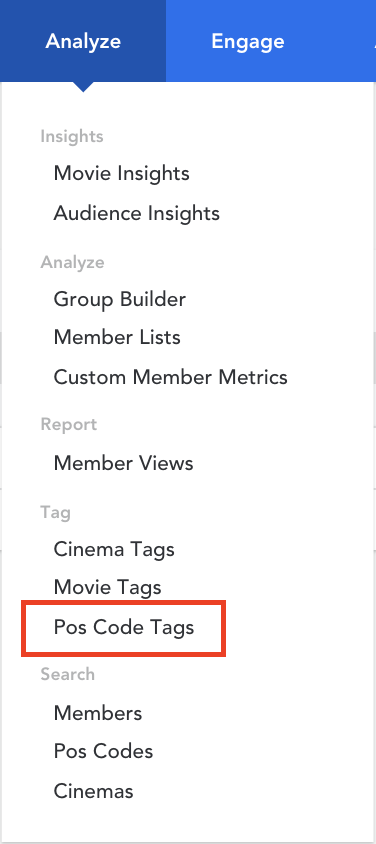
- From the homepage, hover over hover over ‘Analyze’ in the top menu, click on ‘Pos Code Tags’ under the ‘Tag’ header
- Once you are on the POS Code Tags page, click ‘Create Tag’ in the top right corner

- Label your tag and click ‘Create’
- Click on ‘Add POS Codes’ once you have created a tag
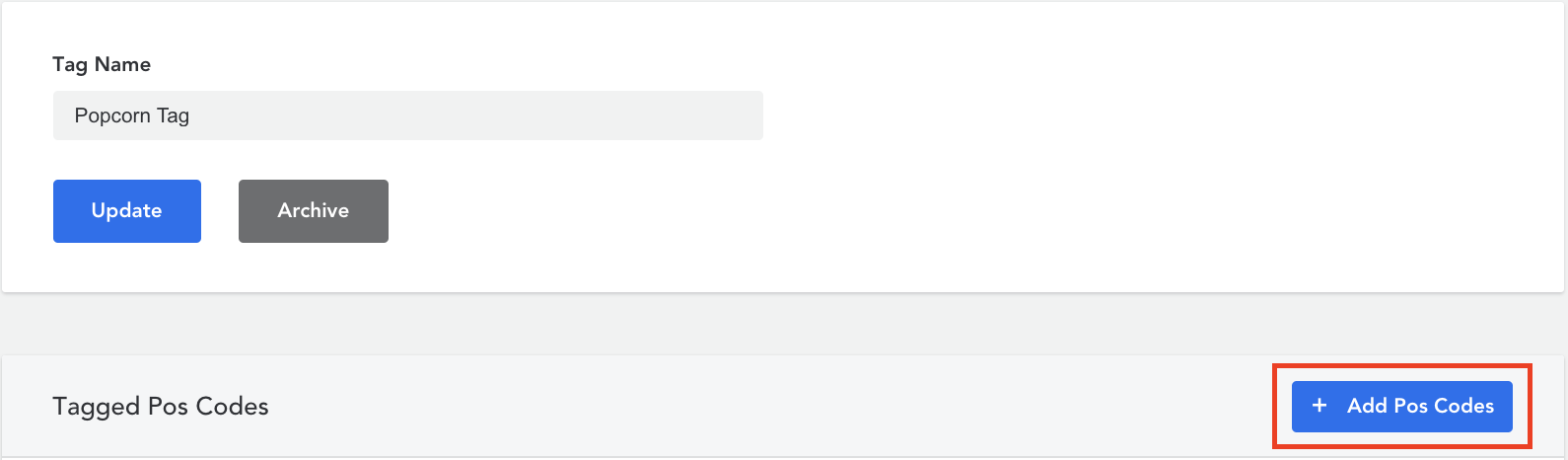
- Start typing the name of the POS Codes you would like to add to your tag. Click on the checkbox to include the code to your tag
- Click on ‘Update’ once you have added all the movies to your tag


Use POS Code tags in Group Builder
In the image below, you will see the POS Code tag ‘Popcorn Tag’ being used in the Group Builder section of Movio Cinema. We added the ‘Purchased Item by Tag’ filter under the ‘Cinema Activity’ heading. Learn how to add filters to your group.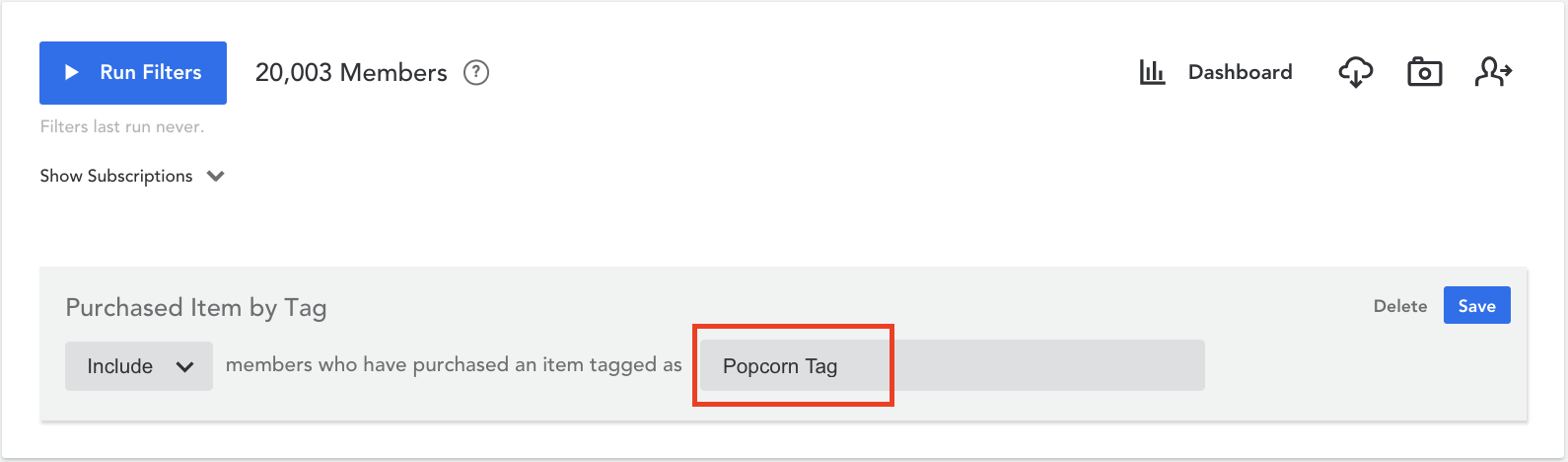
Comments
0 comments
Article is closed for comments.