Auto tagging allows you to create and update tags by uploading a file to Movio Cinema. You can only use file upload to update tags that have been created using auto tagging.
Benefits of Auto-Tagging
- Allows you to establish automated and efficient processes to create and update tags
- Assists in removing possible human error with maintaining multiple tags
- Allows you to easily incorporate tag creation into your business workflow
Auto-tagging allows you to:
- Effortlessly add a new cinema to an existing cinema tag when it opens
- Automatically create tags for a movie that include all the different formats, e.g. 3D, IMAX
Auto tagging file
Each auto-tagging file needs to be uploaded using the CSV format and requires two-columns:
- The name of the tag you’d like to update
- The ID of the item you’d like to add to the tag
If a tag with the name that you have specified does not exist, a new tag will be created. For example, if you’d like to add movies with the IDs of 1234 and 5678 to the ‘Marvel’ movie tag, you would upload a file with the following format:
tagname, ID
'Marvel', 1234
'Marvel', 5678
Please note that the first column must have the heading of ‘tagname’, which is case sensitive. The ID for each item used will depend on your loyalty vendor (please contact your account manager for more information).
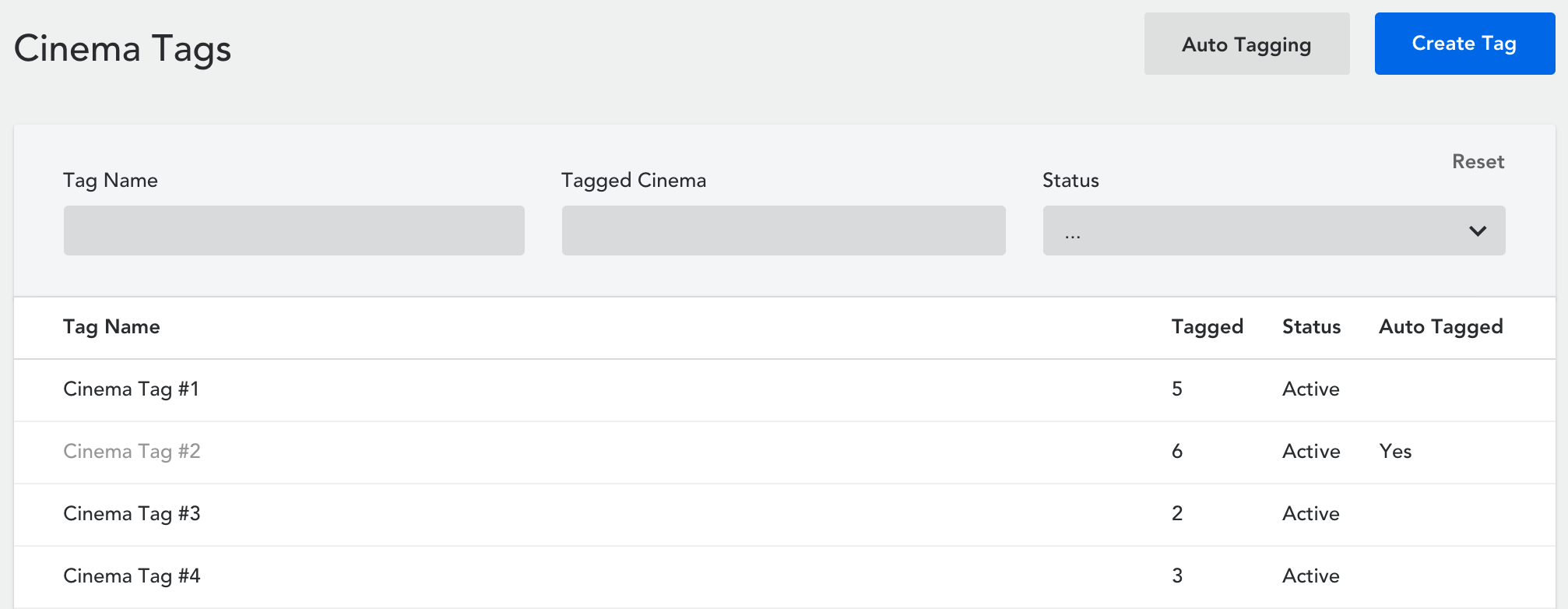
You can identify an auto tag within Movio Cinema. You will notice in the image below that there is a ‘yes’ under the ‘Auto Tagged’ header, and the auto tag is greyed out.
Uploading files
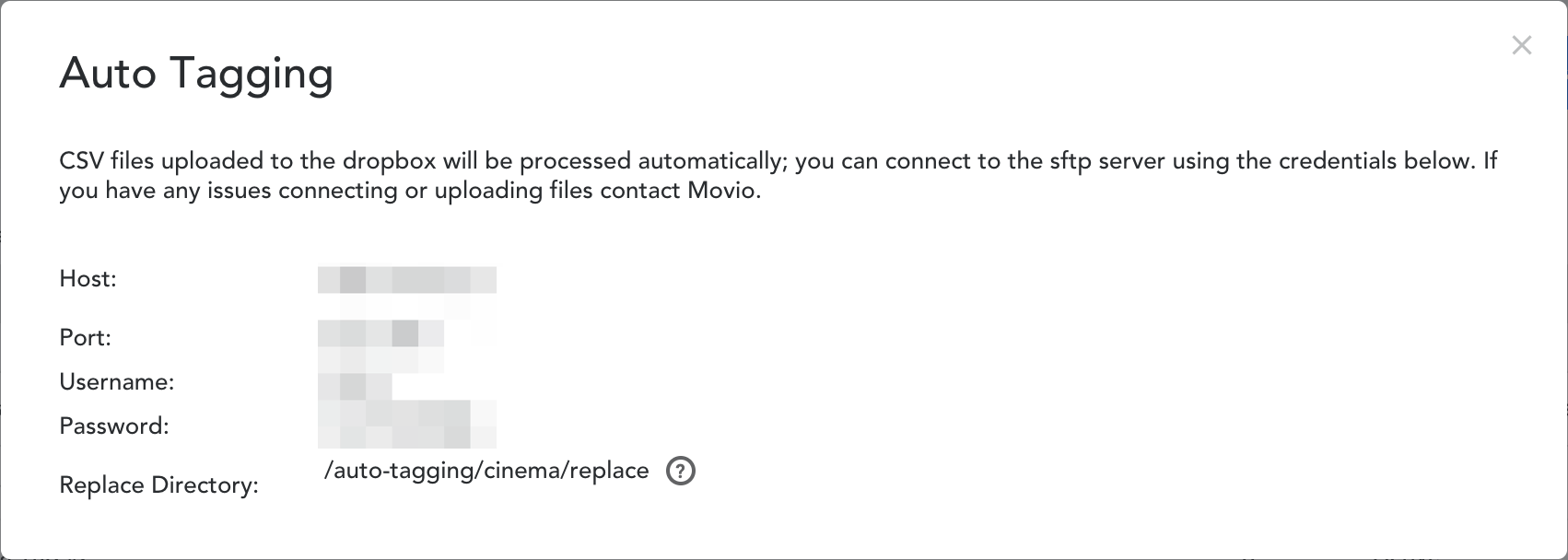
New tag files can be uploaded to Movio Cinema’s FTP Dropbox, which is an SFTP server hosted by Movio. Files need to be uploaded based on the type of item tagged. This follows the folder structure:
/tagging/“item type”/replace
For example, to replace the contents of a movie tag with a new file, it would be uploaded to:
/tagging/movie/replace
Tags can be created for the following item types:
- “movie”
- “posCode”
- “cinema”
Please note that the contents of your tag will be replaced with the contents of your uploaded file.
Click on ‘Auto-tagging’ in the top right and more information about auto tagging will appear.
Updating multiple tags
You can also update multiple tags of the same type within the same file. For example, you could add PosCodes 1234 to both ‘Popcorn‘ and ‘Combos‘ by uploading a file in the following format:
tagname, ID
'Popcorn', 1234
'Combos', 1234
You cannot update an manual tag through auto tagging. These tags will need to be edited manually.
Comments
0 comments
Article is closed for comments.