If you would like to split your group across several lists with the same number of members, you can use the ‘Create Lists’ tab. You will be starting with one list and breaking this into multiple lists. This will allow you to have the same type of member in each list, but you will be able to compare behaviours when applying different types of offers or sending different communication. This can be useful for manual A/B testing of your campaigns.
Note: When creating multiple lists, all members in the snapshot will be randomly attributed to a list
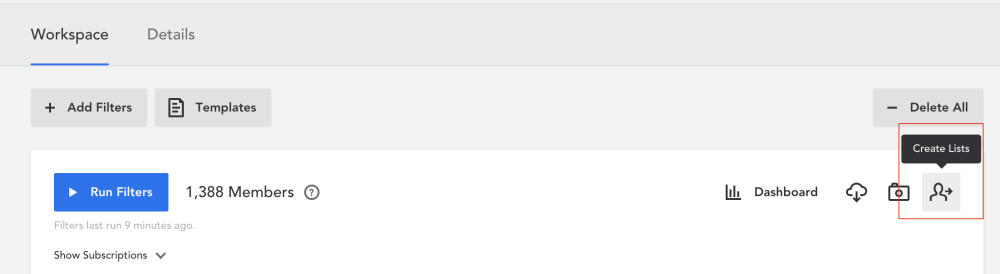
- Click on ‘Create Lists’ in the Group Builder tab
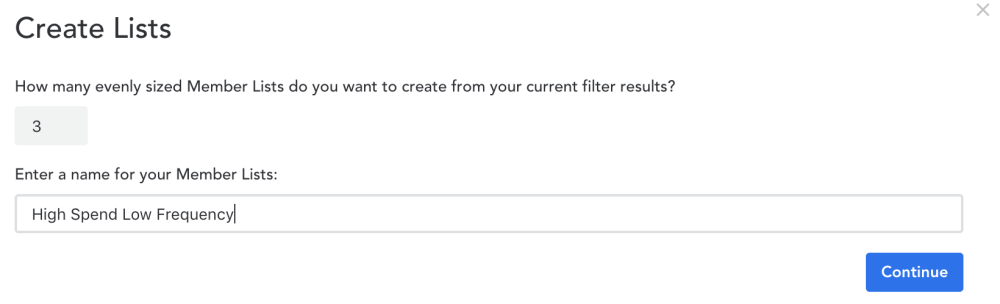
- Enter how many lists you would like to create from your target group, enter a name for these lists, and click ‘Continue’ to save your lists
These lists can then be found by going to Analyze > Member Lists.
Comments
0 comments
Article is closed for comments.