If used correctly, emoji can make your email campaign stand out in a crowded inbox and take them to the next level.
Movio Cinema allows you to use emoji in your subject line, preheader text, and your email content.
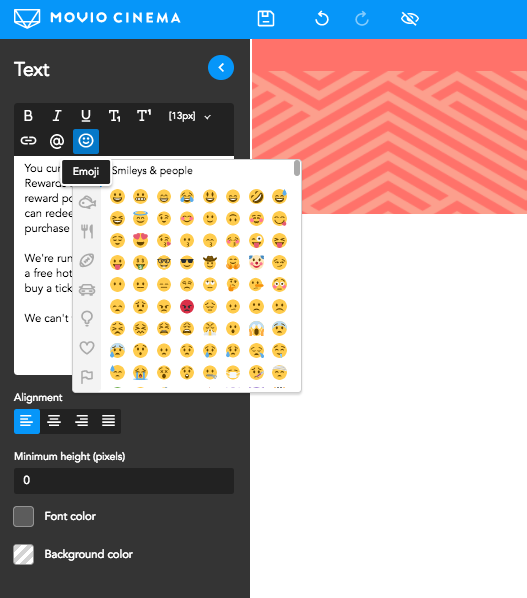
To add emoji into your email campaign copy
- Open the email editor
- Click on the text you’d like to add emoji to
- Click on the smiley face to choose an emoji to add to your campaign
Can your loyalty members see your emoji?
It is important to know that emails render differently across various email clients and devices, and emoji add a new layer of complexity to the issue.
Emoji are based on Unicode Characters, a computing industry standard that aims for a consistent encoding and representation of text and symbols across all digital devices. This standard makes sure that whenever you use the Unicode symbol U+2600, everybody else will know that you’re referring to the much-loved emoji sun ☀️
However, your members’ devices are likely to interpret these unicode characters in different ways – and some might not be able to read emoji unicode at all. This could be due to the age of their operating system, for example, if your members belong to the small percentage of users who still use Windows XP, they won’t be able to see emoji at all. Instead of smiley faces, they will see a ☐. Windows 7 offers very limited support for emoji, displaying black and white, or not at all.
Here’s how your emoji could read over a few operating systems: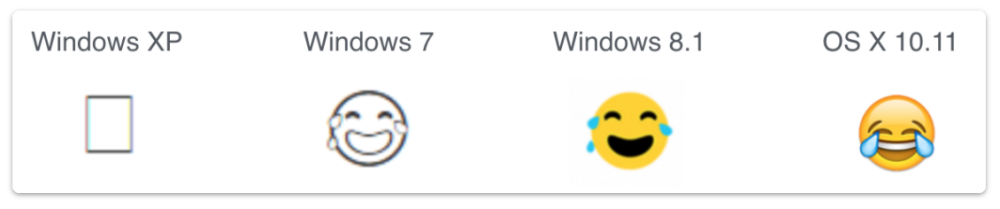
It’s also important to note that just because some operating systems fully support emoji, it does not necessarily mean they will look the same. In the image above, you will see both Windows 8.1 and OSX 10.11 can read the unicode but each uses a unique style to display them.
Emoji support on mobile devices
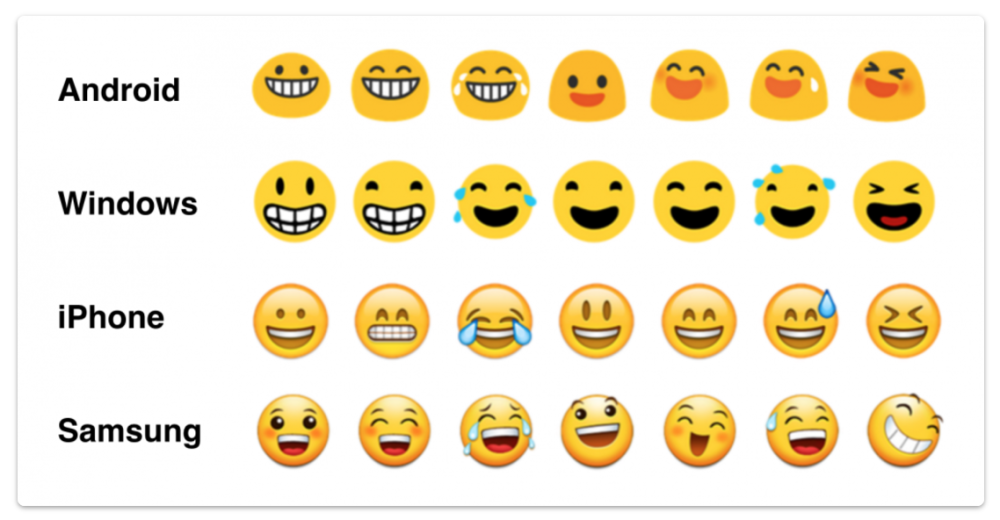
In general, mobile devices are usually more emoji-friendly. iOS has supported emoji since iOS4 and Android first started with 4.1 Jelly Bean. This means that the majority of people who read your email campaigns on their mobile devices will be able to view your emoji.
On mobile devices, however, emoji will appear differently, depending on the underlying technology.
Comments
0 comments
Article is closed for comments.