To use a Loyalty Code in a campaign, a recognition first needs to be set up in Vista Loyalty including additional configurations to allow it to be used in Movio Cinema.
Set up Recognitions
For general instructions on setting up Recognitions, please refer to the Vista Loyalty User Guide specific to your Vista Loyalty version.
Additional Configuration
The following instructions show the settings that are needed in order for Movio to apply the recognitions to members' accounts.
Note: the below screenshots are based on the Vista Loyalty version 5.0.4.1.
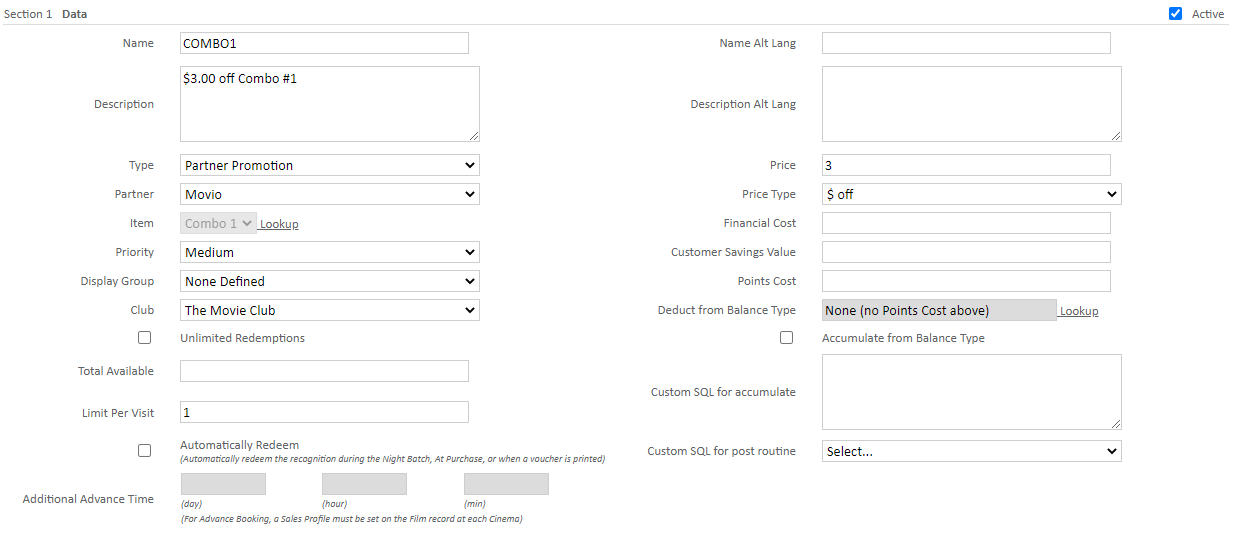
Section 1
- Name: it’s recommended that the name given to your manual recognition is the same as the External Code you will assign in Step 6 and using in Movio
- Type: select 'Partner Promotions'
- Partner: select the partner that represents Movio in Vista Loyalty
- Item: choose the concession item associated with the recognition offer
- Club: a club must be selected
- Limit Per Visit: this will always be honoured
- Price: enter a value
- Price Type: choose one of the available price types
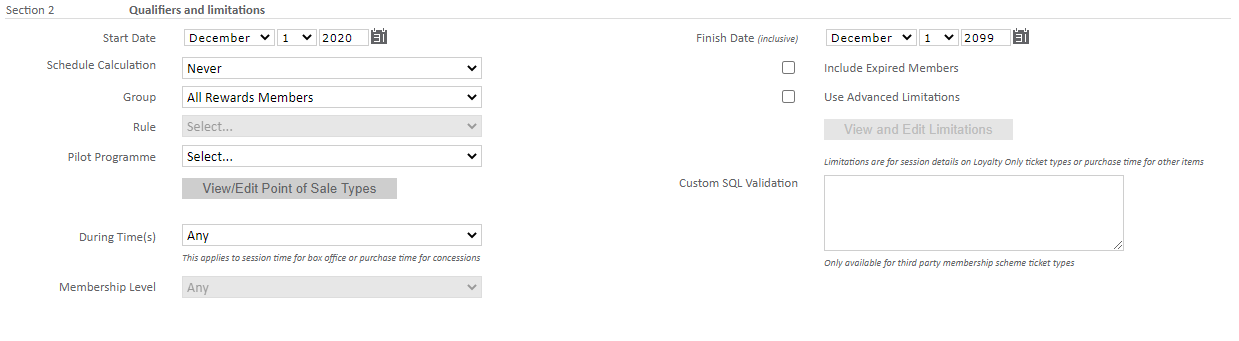
Section 2
- Finish Date: choose a date to determine how long the recognition is available for use in Movio campaigns. As the recognition is applied by Movio it's best to set this date far into the future, as you can use the same offer multiple times
Note, recognitions will expire either at the selected 'Finish Date' in Section 2 or 'Expiry Days' in Section 3 (if filled out), whichever comes first - Group: select a group. The group selected is ignored as the recognition's actual availability is determined by Movio
Section 3
- Availability: if a Movio recognition is available then you would usually want to make sure that it is always offered, so set availability to 'Every Interaction'
- Multiple Recognitions: this allows the same recognition to be used in multiple campaigns
- Expiry: enter a value, if you want the offer to expire by default after a certain time (e.g. 7 days after campaign execution)

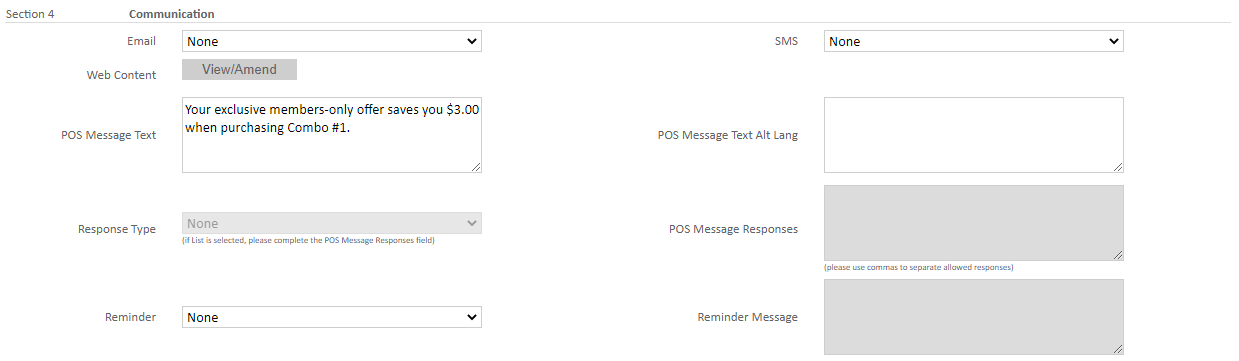
Section 4
- POS Message Text: this notifies the recipient that they are eligible for a recognition
Section 5
This section is not relevant in conjunction with Movio.
Section 6
- Manually Select Recognition: must be ticked to allow Movio to use the recognition
- Reward needs to be Collected: tick this option if you wish the offer to expire at a certain time after being sent out
- Days to Collect: if the above option has been ticked, then this will define the period from when they earned the reward to when it expires
- External Code: this is the value that will be displayed in Movio
- Unlimited Stock: this must be ticked

Section 7
This section is not relevant in conjunction with Movio.
Comments
0 comments
Article is closed for comments.